Setup instructions
Please follow the steps below to setup your environment for the training.
- Download Anaconda for your platform from https://www.continuum.io/downloads. The python 3.5 64 bit version is preferred but if it doesn't work, you can download the 32 bit version.
- Install it for yourself (not for all users).
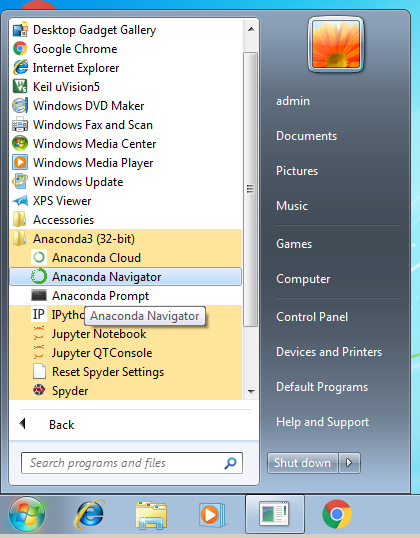
- From your start menu, launch "Anaconda Navigator". It's under the Anaconda3 section of the start menu.
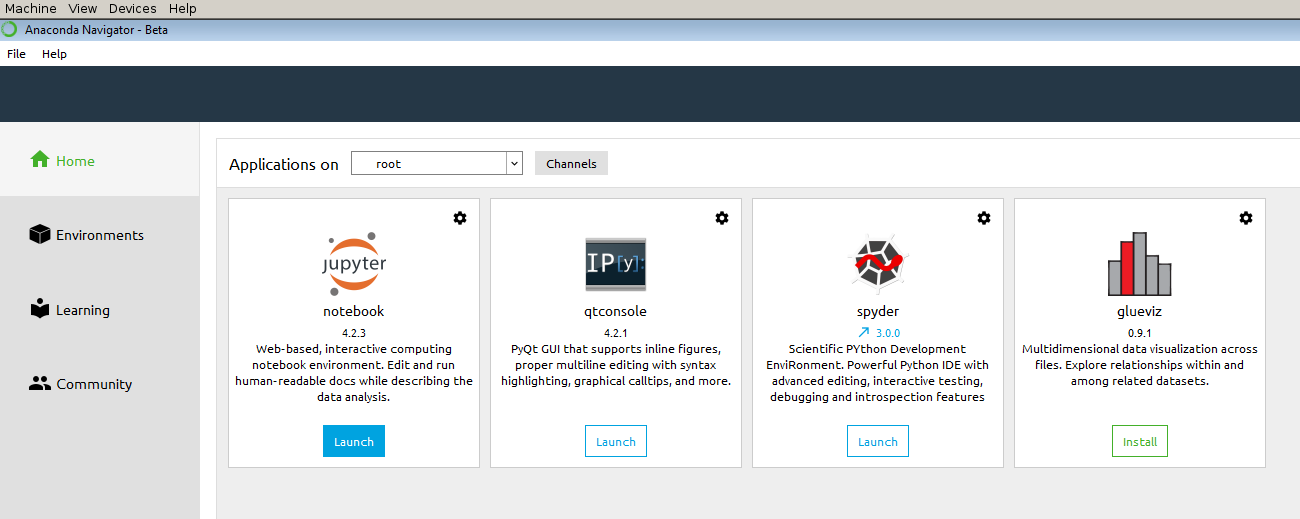
- A GUI will open up. There will be a 4 things inside it - "Jupyter notebook", "qtconsole", "spyder" and "glueviz".
- Click on the "Launch" button below "Jupyter Notebook"
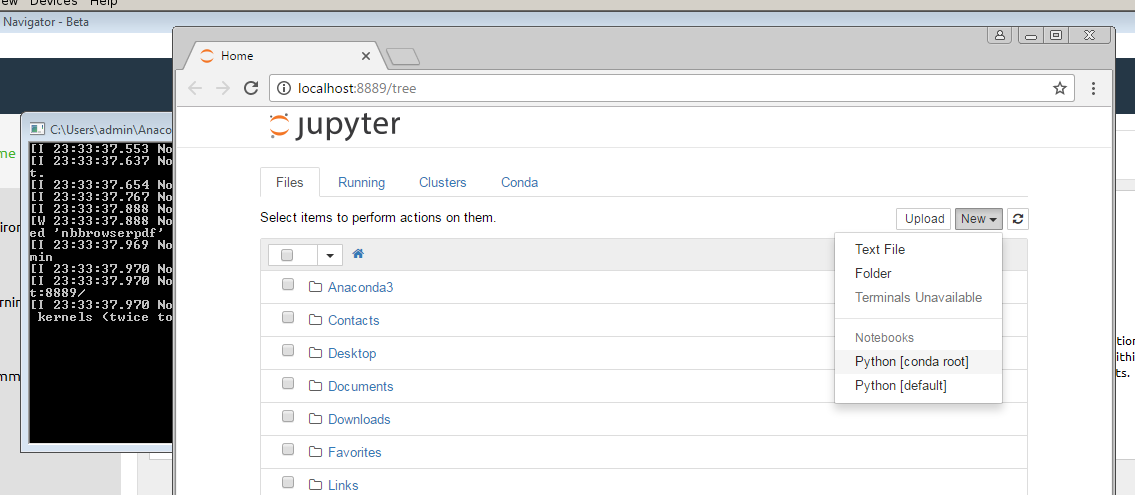
- It should launch the notebook server and then open a browser automatically pointing to http://localhost:8889/tree
- It will show you a page with "Jupyter" written on the top and a list of files.
- On the right will be a "New" button. Click on that.
Select "Python [conda root]"
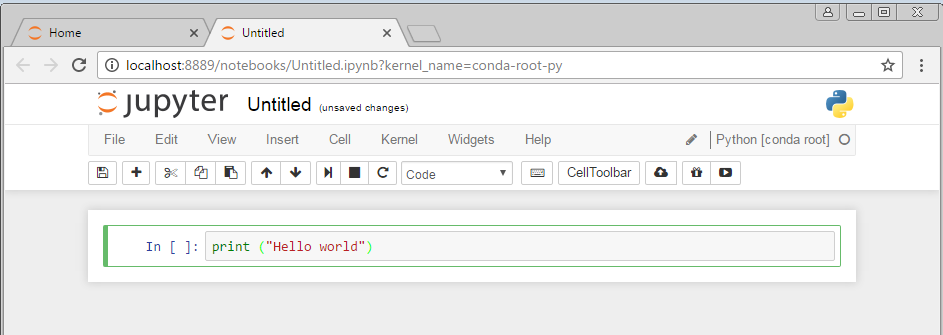
It should open a new tab in your browser pointing to http://localhost:8889/notebooks/Untitled.ipynb?kernel_name=conda-root-py
- There will be a a "cell" with a border around it next to the
In [ ]:. Click inside it. The outside border should turn from blue to green. Type the following inside it
print ("Hello, world")
- Hold "Control" and hit "Enter".
- IF
Hello, worldgets printed, then your installation is good.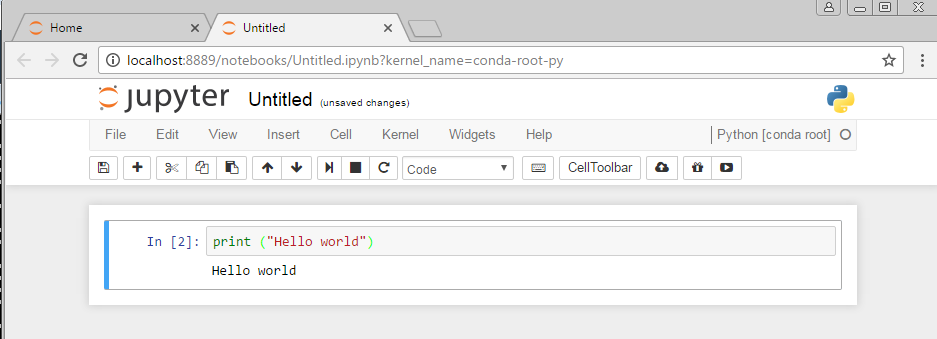
I noticed some problems when my default browser was Internet Explorer. With Chrome, things worked fine.
In [ ]: